ToolSwift Customer Dashboard: Complete Guide (2026)
March 31, 2026
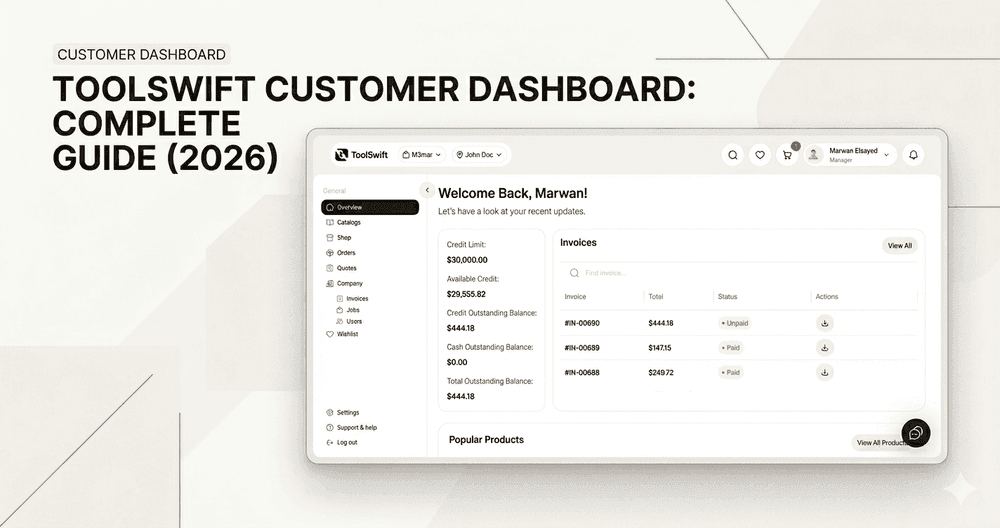
Learn how to navigate the ToolSwift Customer Dashboard, find products faster, manage quotes and orders, and access company tools like invoices, jobs, and users (when enabled). This guide is a complete walkthrough of the customer portal experience.
What is the ToolSwift Customer Dashboard?
Navigate the dashboard confidently (Overview → Shop → Checkout → Orders)
Understand Catalogs vs Shop
Know where to find Quotes, Orders, and Company tools
What the Company area is used for
Where to get help when something doesn’t look right Drag
Who this dashboard is for (and what you can do here)
Browse and filter products in the Shop Drag
Use Catalogs for curated or company-specific items
Save items for later using Wishlist
Request a quote and track its status in Quotes
Place orders and review history in Orders
Check invoices and pay due invoices in the Company → Invoices (if enabled for your role)
Navigation overview (what each area is for)
Overview: Your starting point and quick summary of activity.
Catalogs: Company catalogs and item-specific lists (when configured).
Shop: The full browsing experience (All Products), with filters and search.
Orders: View all orders and open an order to see details.
Quotes: Request quotes and review quote updates and details.
Company:
- Invoices: View and pay due invoices (manager + company selection required)
- Jobs: Company job tracking (if enabled)
- Users: Manage users (if enabled)
Wishlist: Your saved lists (called “My Lists” inside the page).
Settings: Personal preferences and account settings.
Support & Help: Opens the help center.
Catalogs vs Shop: where to browse first
Catalogs & Item Specific has two tabs:
- Catalogs
- Item Specific
Shop (All Products) includes filters like categories, brands, price range, attributes, availability, and sorting.
The typical workflow: Shop → Cart → Checkout → Orders
- Open Shop
- Filter and find products
- Add items to your cart
- Review your cart and proceed to Checkout
- Submit your order
- After submission, open Orders to view details and history
Quotes: when to request a quote instead of ordering
Filter and search quotes
Click Request Quote to start a quote request
Open a quote to view details
Company tools (Invoices, Jobs, Users) and access rules
Wishlist: save products for later
Create a new list
View existing lists
Manage saved items (depending on what’s enabled in your portal)

